Managing Users & Access
AutoPod lets you give presenters and staff their own logins with controlled access to specific shows. You stay in control of the station while your team manages their own content.
Access levels
AutoPod has two main access levels that matter for your station:
| Level | Who | What they can do |
|---|---|---|
| Account Owner | You (the station administrator) | Everything — manage shows, schedule, episodes, users, settings, analytics |
| Delegate User | Presenters, producers, staff | View and edit only the shows they've been assigned to — manage episodes, upload content, edit show details for their shows |
What delegate users can see
When a delegate user logs in, they see a simplified dashboard showing only:
- Their assigned shows
- Episodes belonging to those shows
- The ability to upload episodes and edit show details for their shows
They cannot see:
- Other shows in the station
- The schedule builder
- Station settings
- Analytics
- User management
- Other users
This keeps things simple for presenters — they see their show and nothing else.
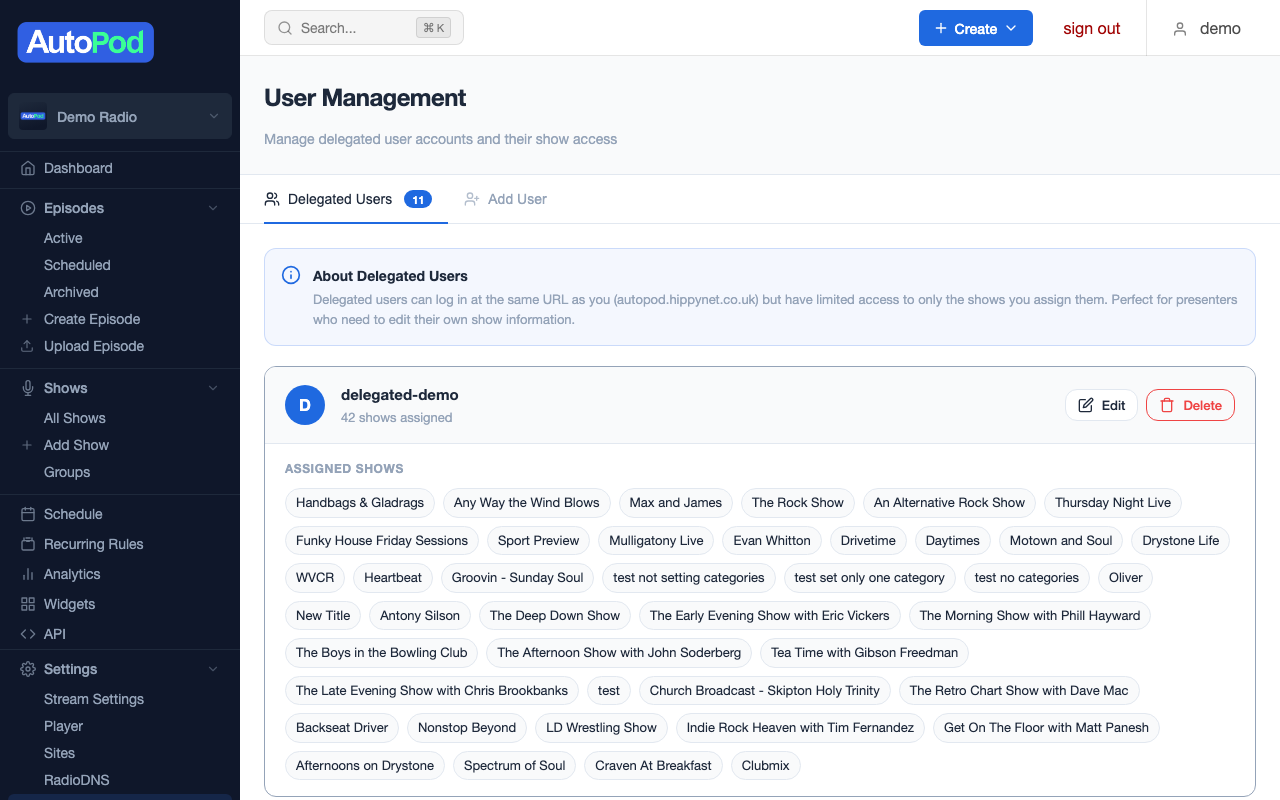
Adding a delegate user
- Go to Users in the sidebar
- Click the Add User tab
- Fill in the details:
| Field | Required | Notes |
|---|---|---|
| Username | Yes | What they'll use to sign in (minimum 3 characters, must be unique) |
| Password | Yes | Temporary password you share with them (minimum 8 characters) |
| Assigned shows | Yes | Check the shows this user should have access to |
- Click Create User
Share the username and password with the presenter — they log in at the same dashboard URL as you.
Choose a simple, memorable username for presenters. Something like sarah or dave.morning works well. Usernames must be unique across the entire platform.
Editing a delegate user
- Go to Users → Delegated Users tab
- Click Edit on the user you want to change
- You can:
- Change their password (leave blank to keep the current one)
- Add or remove show assignments by checking/unchecking shows
- Click Save Changes
Changing show assignments
This is the most common edit. When a presenter picks up a new show or drops one, just update their show checkboxes. Changes take effect immediately — next time they log in (or refresh), they'll see the updated show list.
Resetting a password
There's no self-service password reset. If a presenter forgets their password:
- Go to Users → find the user → Edit
- Enter a new password
- Save
- Share the new password with them directly (phone, email, in person)
Removing a delegate user
- Go to Users → Delegated Users tab
- Click Delete on the user
- Confirm the deletion
The user is removed immediately and can no longer log in. Their show assignments are also removed. This doesn't affect any episodes or shows — it only removes the user's access.
Practical examples
Scenario: New presenter joins the station
- Create a show for their programme (if it doesn't already exist)
- Add them as a delegate user
- Assign them to their show
- Share the login credentials
- They can now log in, see their show, and upload episodes
Scenario: Presenter moves to a different show
- Edit their user account
- Uncheck the old show, check the new show
- Save — done. No need to create a new account.
Scenario: Presenter leaves the station
- Delete their user account — they can no longer log in
- Optionally, their show and episodes remain untouched for the next presenter
Scenario: Multiple presenters share a show
Assign the same show to multiple delegate users. Each presenter can see and manage episodes for that show. They'll all see the same episode list.
Security notes
- Passwords are encrypted — stored using bcrypt hashing. Nobody (including AutoPod staff) can see a user's password.
- Sessions expire — users are logged out automatically after a period of inactivity.
- Cross-station isolation — delegate users can only see shows within your account. There's no way to accidentally see another station's content.
- Usernames are global — each username must be unique across all AutoPod stations, not just yours.
AutoPod uses username and password authentication. There's no single sign-on (SSO) or social login at this time. Each user needs their own AutoPod credentials.