Managing Shows
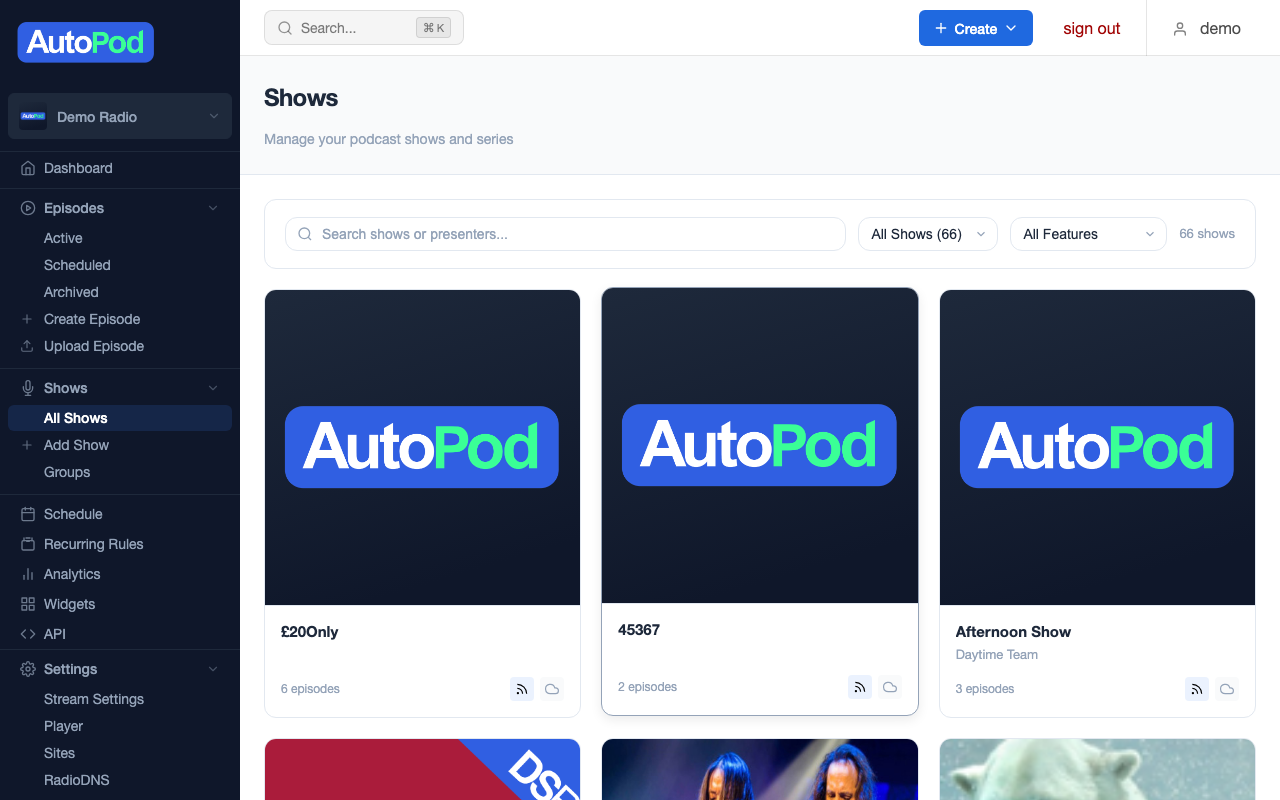
Shows are the heart of your station on AutoPod. Each show represents a named programme — "The Breakfast Show", "Afternoon Drive", "Saturday Sports" — and is the container for all the episodes that belong to it.
What is a show?
A show in AutoPod maps to a programme on your station. When you add a show to the schedule, AutoPod automatically creates episodes for it from your live broadcast. Shows have their own artwork, presenter, description, and distribution settings — so each show can have its own RSS feed, its own page in the player, and its own section on your website.
Creating a show
- Go to Shows in the sidebar
- Click Add Show
- Fill in the details:
| Field | Required | What it does |
|---|---|---|
| Title | Yes | The show name — appears everywhere (player, RSS, website) |
| Presenter | No | The host's name — shown in the player and on your website |
| Description | No | A paragraph about the show — used in RSS feeds and your website |
| Artwork | No | Square image (ideally 3000 × 3000px, JPG or PNG) — used as the podcast cover art |
| Category | No | iTunes-compatible podcast category — used by Apple Podcasts and Spotify to classify your show |
- Click Save
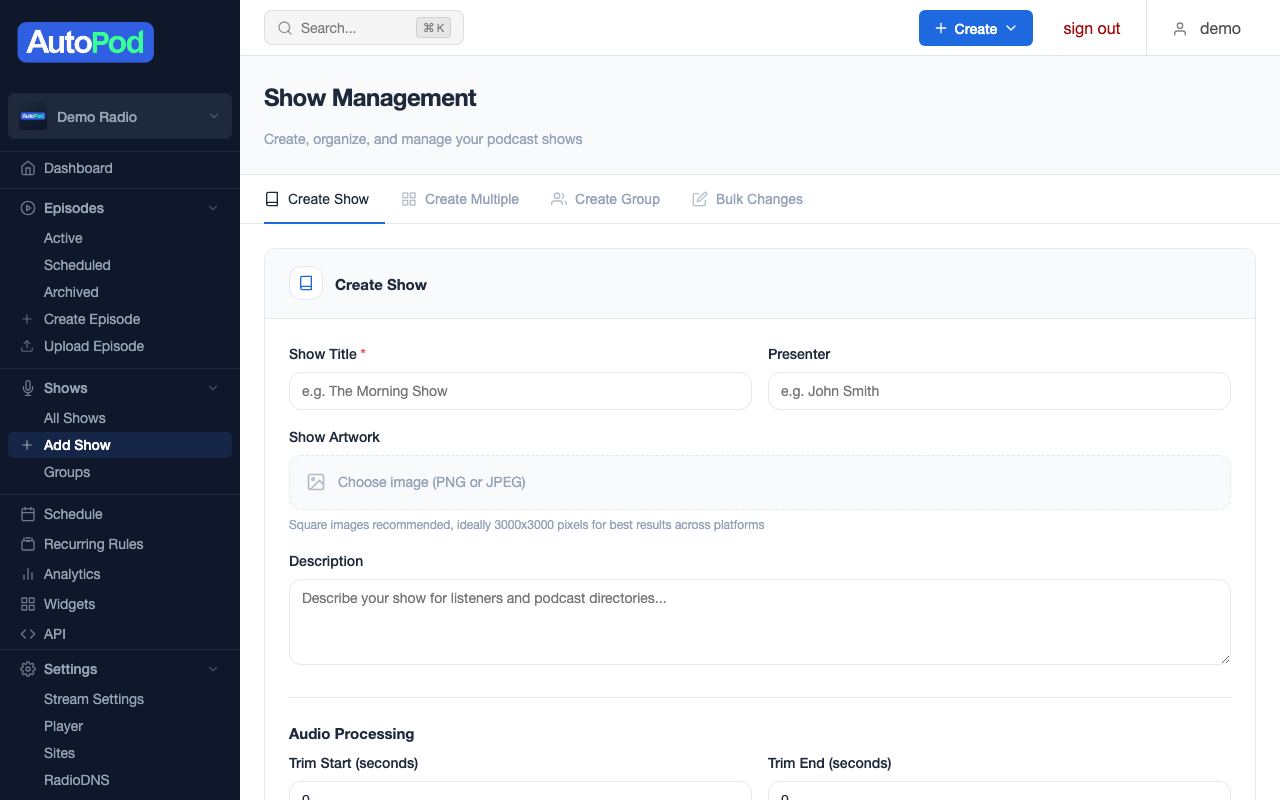
That's all you need to get started. Your show is now ready to be added to the schedule.
If you're setting up a new station, use Create Multiple Shows on the same page to add several shows at once. Just enter the title and presenter for each — you can add artwork and descriptions later.
Show settings
Once a show exists, you can configure additional settings from its detail page. Click any show in the list, then go to the Settings tab.
Visibility
- Published — When enabled, the show and its episodes are visible to the public in your player, on your website, and in RSS feeds. When disabled, the show is only visible in the dashboard (useful for shows you're preparing but haven't launched yet).
Audio trimming
Live radio often has a few seconds of overlap at the start or end of a show — maybe the previous presenter is still talking, or there's a station ident playing. Trimming lets you automatically clean this up.
- Trim from start — Remove a set number of seconds from the beginning of every episode. Default is 120 seconds (2 minutes) when enabled. Maximum is 900 seconds (15 minutes).
- Trim from end — Remove a set number of seconds from the end of every episode. Maximum is 3600 seconds (1 hour).
Trimming applies to all future episodes. It doesn't change episodes that have already been generated.
Pre-roll / Intro audio
You can attach an intro audio file to a show. When enabled, this audio is automatically prepended to every new episode — useful for podcast intros, sponsor messages, or station branding.
- Intro file — Upload an MP3 file (max 10 MB). It's processed and converted to match the episode format automatically.
- Enable intro — Toggle whether the intro is prepended to new episodes.
The intro goes through a short processing step after upload. You'll see its status change from Pending → Processing → Ready.
RSS and distribution
- Exclude from RSS — When enabled, no RSS feed is generated for this show. The show still appears in the player, but won't be available as a podcast feed. Useful for shows with music licensing restrictions.
- Podcast categories — Up to three categories. The primary category is used by Apple Podcasts to classify your show. Choose the most relevant one first.
- Mixcloud publishing — When enabled, new episodes are automatically uploaded to Mixcloud (requires Mixcloud to be connected at the stream level).
Auto-archiving
- Archive after days — Automatically archive episodes older than a set number of days. Archived episodes are hidden from your public player but remain in the dashboard. Set to 0 or leave blank to disable.
Show artwork
Good artwork makes your shows look professional in podcast apps, on your website, and in the player.
Recommended specifications:
- Size: 3000 × 3000 pixels (square)
- Format: JPG or PNG
- Content: Show logo or branded image — this becomes the podcast cover art
If a show doesn't have its own artwork, it falls back to the stream's default image.
You can update artwork at any time from the show's Settings tab. The new image takes effect immediately for the player and website. RSS feeds update within a few minutes.
Viewing a show's detail page
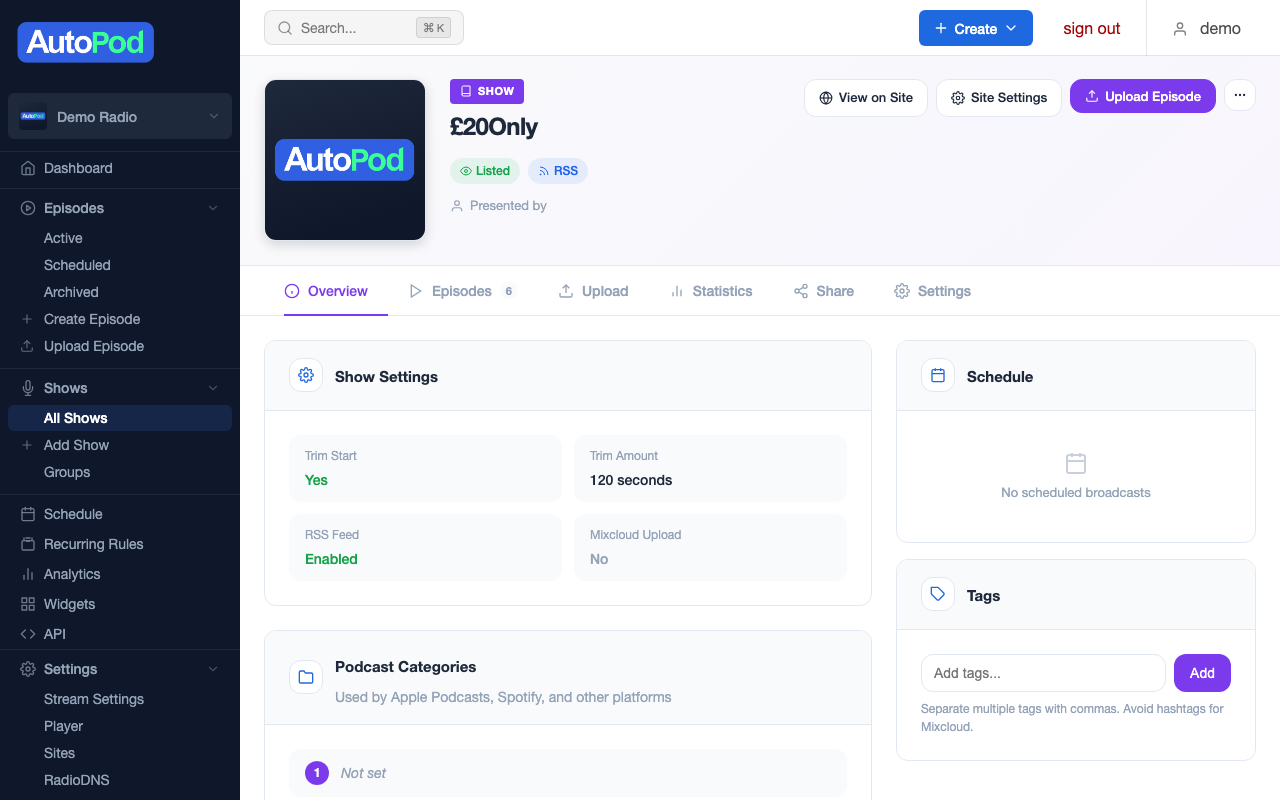
Click any show in the list to see its detail page. This gives you a full view of everything related to that show:
| Tab | What it shows |
|---|---|
| Overview | Show info, episode count, broadcast schedule, upcoming recordings |
| Episodes | All published episodes with filters (active, archived, scheduled, deleted) |
| Schedule | Which time slots this show is assigned to in the weekly schedule |
| Recordings | Upcoming scheduled jobs for episode generation |
| Settings | Edit all show details (title, artwork, trimming, categories, etc.) |

Editing a show
- Go to Shows → click the show → Settings tab
- Change whatever you need
- Click Save
Changes to the title, description, presenter, and artwork take effect across the player and website immediately. RSS feeds update within a few minutes.
Deleting a show
Deleting a show permanently removes the show and all its episodes. Episode files are deleted from storage. This cannot be undone.
- Go to Shows → click the show → Settings tab
- Scroll to the bottom and click Delete Show
- Confirm the deletion
If you want to keep the episodes but hide the show from the public, use the Published toggle instead of deleting.
Bulk actions
From the show list, you can select multiple shows and apply actions in bulk:
- Publish / Unpublish — Make multiple shows visible or hidden at once
- Enable / Disable Mixcloud — Turn Mixcloud publishing on or off for several shows
- Remove images — Clear artwork from multiple shows (useful if you're replacing all artwork)
How shows connect to everything else
- Series — A behind-the-scenes link between a show and the schedule. You don't need to manage series directly — when you create a show, a series is created automatically. The schedule builder uses series to assign shows to time slots.
- Schedule — Shows are dragged onto time slots in the Schedule Builder. When a scheduled time arrives, AutoPod generates an episode for the show.
- Episodes — Belong to the show (via series). Inherit the show's artwork and metadata.
- RSS Feed — Each show gets its own feed at
rss.autopod.xyz/show/{id}.rss(unless RSS is excluded). - Player — Each show has its own page in the player, listing all published episodes.
- Groups — Shows can optionally be added to groups for combined RSS feeds and widgets.