Managing the Schedule
The schedule is what makes AutoPod automatic. Tell it which shows air when, and it takes care of the rest — recording, stitching, and publishing episodes without you lifting a finger.
How the schedule works
AutoPod uses a rotating week cycle. You build one or more template weeks, and the system cycles through them automatically. Most stations use a single week that repeats every 7 days. Some stations use 2-week or 4-week rotations for shows that alternate.
Each week is divided into 15-minute time slots across 7 days (Monday to Sunday). You assign shows to these slots, and AutoPod uses the schedule to know when each show starts and ends.
The Schedule Builder
The Schedule Builder is a visual, grid-based editor — think of it as a spreadsheet for your programming. Days run across the top, times run down the side, and you drag shows into the slots where they belong.
Opening the Schedule Builder
Go to Schedule in the sidebar. You'll see:
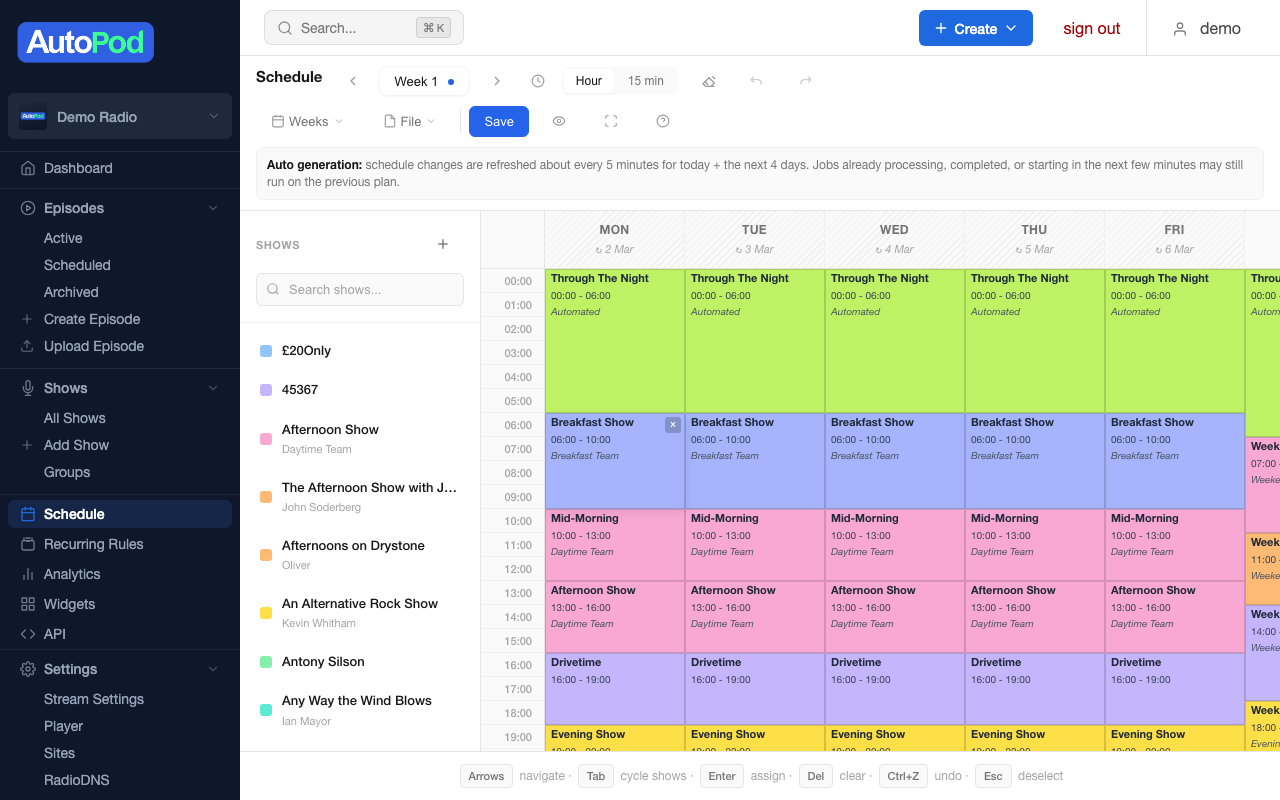
- The grid — 7 columns (Mon–Sun), with time slots running vertically
- The shows panel — on the left, listing all your shows with colour indicators
- The toolbar — across the top, with save, undo/redo, view controls, and week navigation
Assigning shows to time slots
There are several ways to add a show to the schedule:
- Drag and drop — Click a show in the sidebar panel and drag it onto the grid. The show fills the slots you drop it on.
- Click to select, then assign — Click cells in the grid to select time slots (hold Ctrl/Cmd to select multiple). A selection bar appears — choose a show from the dropdown to assign it.
- Keyboard — Use arrow keys to navigate the grid, Tab to cycle through shows in the sidebar, and Enter to assign the selected show.
Moving and resizing blocks
- Move — Drag a scheduled block to a different day or time
- Resize — Grab the top or bottom edge of a block and drag to extend or shorten it
- Delete — Select a block and press Delete/Backspace, or use the Eraser tool
View modes
| Mode | What you see | Best for |
|---|---|---|
| Hour view | Each row = 1 hour | Planning and overview |
| 15-minute view | Each row = 15 minutes | Precise timing adjustments |
Switch between views using the Hour / 15 min buttons in the toolbar.
Week management
Navigating between weeks
- Prev / Next buttons — Step through weeks one at a time
- Week tabs — For schedules with 1–4 weeks, clickable tabs appear for direct access
- Week dropdown — For 5+ weeks, a dropdown selector replaces the tabs
- Jump to Current — The clock icon button takes you to whichever week is currently active
A red dot appears next to any week with unsaved changes.
Week actions
From the Weeks menu in the toolbar:
| Action | What it does |
|---|---|
| New Week | Add a blank week to the rotation |
| Copy Week | Duplicate the current week (useful for making small variations) |
| Set as Current | Change which week the system uses for upcoming recordings |
| Reorder Weeks | Drag weeks into a different order — schedule data moves with each week |
| Compare Weeks | Side-by-side visual comparison highlighting differences |
| Delete Week | Permanently remove a week from the rotation |
Changing the current week affects which schedule template is used for upcoming recordings. The system refreshes every few minutes, so changes take effect shortly after you save.
Comparing weeks
The Compare Weeks feature shows two weeks side by side with colour-coded differences:
- Same — Identical blocks in both weeks (no highlight)
- Different — Different shows or times (highlighted)
- Only in Week A — Block exists only in the first week
- Only in Week B — Block exists only in the second week
This is useful when you're making seasonal changes and want to see exactly what's different.
Saving your schedule
The Schedule Builder tracks which weeks you've changed. When you click Save:
- A confirmation modal shows which weeks will be saved
- Click Confirm to save all changes
- Only modified weeks are sent — unchanged weeks are left alone
Draft recovery
If your browser closes unexpectedly, don't worry. The Schedule Builder automatically saves a draft to your browser every few seconds. Next time you open the schedule, you'll be asked whether to restore your draft or discard it.
Drafts are kept for 7 days.
Undo and redo
The Schedule Builder keeps a history of up to 50 actions. Use:
- Ctrl+Z (Cmd+Z on Mac) to undo
- Ctrl+Y (Cmd+Y on Mac) to redo
- Or click the undo/redo buttons in the toolbar
Right-click menu
Right-click any block in the grid for quick actions:
- Copy — Store the block (show + duration) in the clipboard
- Duplicate — Create an identical copy on the same day
- Extend — Extend the block to midnight
- Delete — Remove the block
- Replace — Swap the show while keeping the time and duration
- Paste — Replace the block with whatever you've copied
Right-click an empty cell to paste a copied block at that position.
Keyboard shortcuts
| Shortcut | Action |
|---|---|
| Arrow keys | Navigate the grid |
| Shift + Arrow | Extend selection |
| Tab / Shift+Tab | Cycle through shows in the sidebar |
| Enter | Assign selected show to selected cells |
| Delete / Backspace | Clear selected cells |
| Ctrl+Z / Cmd+Z | Undo |
| Ctrl+Y / Cmd+Y | Redo |
| Escape | Deselect / exit eraser mode / close modals |
Import and export
Exporting a schedule
Export the current week as a JSON file. Useful for backups, sharing between stations, or as a template.
Click Export in the toolbar — a .json file downloads automatically.
Importing a schedule
Click Import in the toolbar to open the import wizard.
Built-in templates:
| Template | What it creates |
|---|---|
| Logging Mode | 24 hourly shows — one per hour. Useful for compliance recording. |
| Day Parts | 4 blocks: Breakfast, Morning, Afternoon, Evening |
| Weekday/Weekend | Different schedules for weekdays and weekends |
You can also import from a JSON file (previously exported) or paste JSON directly.
The import wizard shows a preview before applying, so you can check it looks right before committing.
Quick Add Show
Need a show that doesn't exist yet? Click the + button next to the Shows panel header. Enter a show name and presenter, and the show is created instantly — ready to drag onto the schedule without leaving the builder.
Recurring rules
For shows that follow a pattern (e.g., "every Monday at 9am"), you can set up recurring rules instead of manually placing blocks. Access this from Weeks → Recurring Rules in the toolbar.
A recurring rule specifies:
- Which show
- Which day and time
- Duration
- Whether it repeats weekly or on an Nth-week pattern
- Optional start and end dates
Recurring rules are applied when the schedule is processed, filling in the grid automatically.
Tips for station managers
Most stations use a single repeating week. Only add more weeks if you genuinely have alternating programming (e.g., Week 1 has "The Rock Show", Week 2 has "Jazz Night" in the same slot).
If a show runs past midnight (e.g., "The Late Show" from 22:00 to 01:00), schedule it as two blocks — one ending at midnight, one starting at midnight the next day. AutoPod handles the continuity.
Use Compare Weeks after making changes to see exactly what's different from the previous version. This catches accidental edits.
How the schedule drives episode generation
- You build the schedule in the Schedule Builder
- Every few minutes, the Schedule Converter checks the schedule and creates recording jobs for upcoming time slots
- After each show finishes airing, the Audio Generator stitches the recorded segments into a complete episode
- The episode appears in your player, on your website, and in your RSS feeds — automatically