Widget Overview
AutoPod widgets let you embed your station's content directly on your existing website — episode players, schedule grids, show listings, live streaming, and more. Just copy a code snippet and paste it into your site.
What are widgets?
Widgets are small, self-contained components that display your AutoPod content inside any webpage. They look and behave like part of your website, but they're powered by AutoPod — automatically updating as you publish new episodes, change the schedule, or go live.
Why use widgets?
If you already have a station website and don't want to replace it with AutoPod Sites, widgets let you add AutoPod-powered content without rebuilding anything:
- Episode player on your homepage
- Schedule grid on your programme page
- "Listen Live" button in your header
- Episode search for your archive page
- Show listings on your about page
Widgets are responsive (they adapt to your page width), styled to match your station's colours, and require no coding beyond pasting the embed code.
How they work
- You get an embed code from the dashboard (a short HTML snippet)
- You paste it into your website's HTML
- The AutoPod Widget SDK loads and renders the component
- The widget fetches live data from AutoPod's API
- It updates automatically — new episodes, schedule changes, and live status all appear in real time
No authentication is needed. Widgets only display public data (published shows, active episodes).
Widget categories
Content widgets
Display your episodes, shows, and schedule.
| Widget | What it shows |
|---|---|
| Episodes | Recent episodes from your station or a specific show |
| Shows Grid | All published shows with artwork |
| Shows Carousel | Horizontal scrolling show cards |
| Schedule Grid | Full 7-day schedule with colour-coded blocks |
| Schedule Strip | Compact horizontal timeline |
| Now / Next | Current and upcoming shows from your schedule |
Playback widgets
Let listeners play content directly on your website.
| Widget | What it does |
|---|---|
| Inline Player | Full episode player with controls |
| Mini Bar | Compact sticky player bar |
| Featured Episode | Large card with the latest episode and playback |
| Listen Live | Live stream player with now/next display |
Action widgets
Quick interaction points for your website.
| Widget | What it does |
|---|---|
| Launch Button | "Listen Now" button that opens the player |
| On Air Badge | Small badge showing current show with live indicator |
| Search | Full-text episode search |
See Available Widgets for details on each widget type.
Getting started
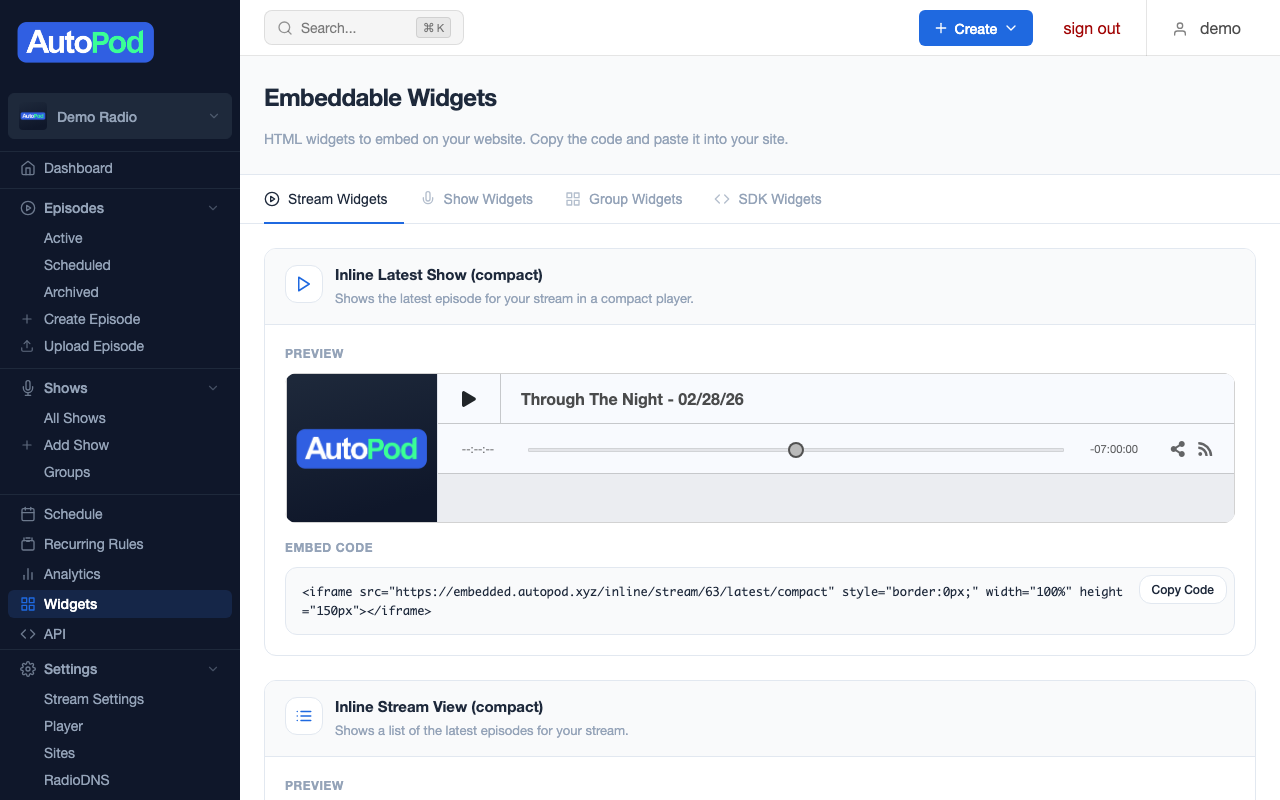
- Go to Widgets in the dashboard sidebar
- Choose a widget type
- Configure it (colours, content source, display options)
- Copy the embed code
- Paste it into your website
See Getting Your Embed Code for a step-by-step walkthrough.