Sites Overview
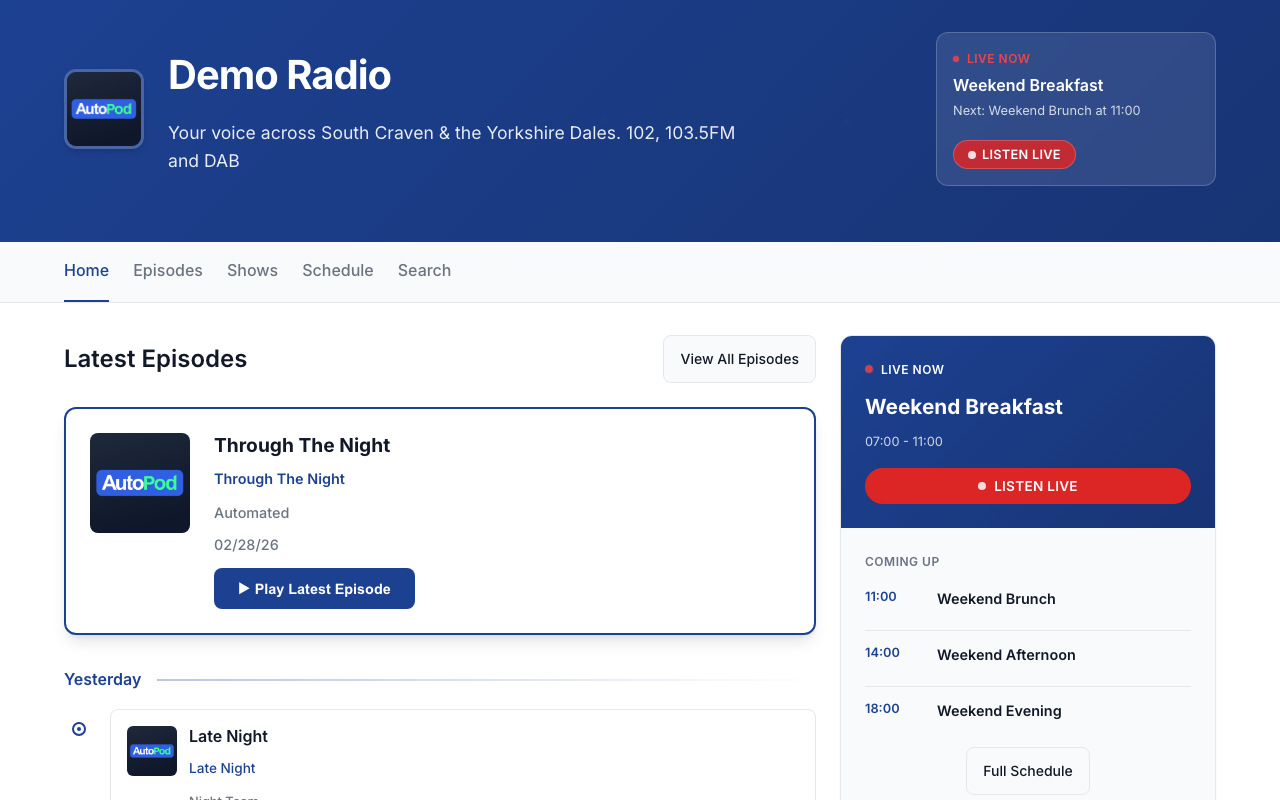
AutoPod Sites gives your station a complete, ready-made website — with show pages, episode listings, a schedule, presenter profiles, and search. No web development required.
What is AutoPod Sites?
Every AutoPod station can have its own website, hosted and managed by AutoPod. It's a public-facing site for your listeners, separate from the dashboard you use to manage your station.
Your Sites website includes:
| Page | What it shows |
|---|---|
| Homepage | Customisable layout with latest episodes, shows, schedule, and your own content blocks |
| Episodes | Browse all episodes with date filtering and a calendar view |
| Shows | Grid of all your published shows with artwork |
| Schedule | Today's schedule, weekly view, and now/next display |
| Presenters | List of all presenters with links to their episodes |
| Search | Full-text search across all episodes |
| Custom Pages | Your own pages for announcements, sponsors, events, or anything else |
How it differs from the Player
The Player is focused on listening — it's an audio app for playing episodes and tuning into live radio.
Sites is a full website — it has pages, navigation, SEO, social links, and custom content. It's where you send listeners who want to browse your station, discover shows, and explore your archive.
| Feature | Player | Sites |
|---|---|---|
| Play episodes | Yes | Links to player |
| Browse episodes | Simple list | Full archive with dates and calendar |
| Show pages | Basic listing | Full pages with description and episodes |
| Presenter profiles | No | Yes |
| Custom pages | No | Yes |
| SEO & social sharing | Basic | Full meta tags, OpenGraph, Twitter cards |
| Custom CSS | No | Yes |
| Homepage builder | No | Yes |
| Navigation menu | Fixed | Customisable |
Getting started
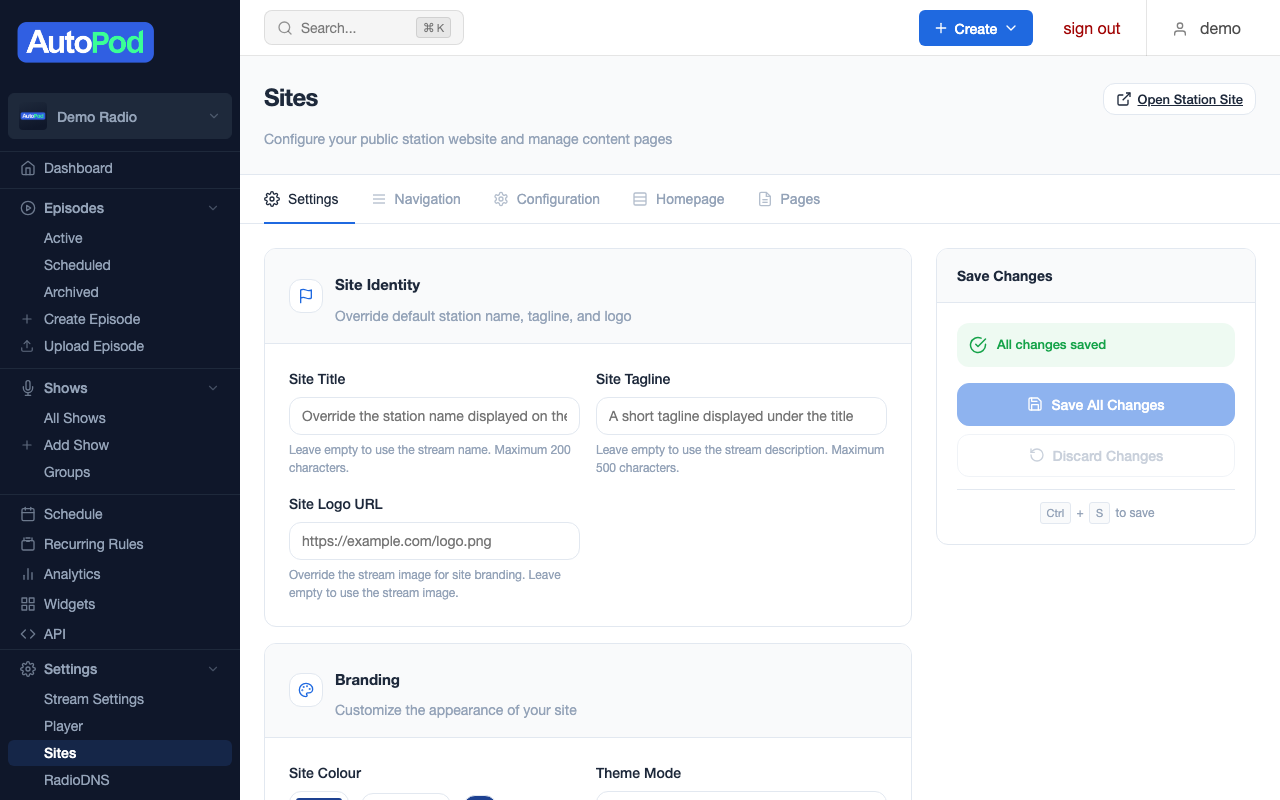
Enabling Sites takes about 5 minutes:
- Go to Stream Settings → Sites in the dashboard
- Toggle Enabled
- Your site is live immediately at
sites.autopod.xyz/station/{your-stream-id}/ - Customise branding, toggle features, and add content as you like
See Setting Up Your Site for a step-by-step walkthrough.
Branding your site
Sites uses your station's branding by default — your station name, image, and colour. You can override these with site-specific settings:
- Site title — Override the station name
- Tagline — A short description that appears on the homepage
- Logo — Custom logo (falls back to your station image)
- Colour — Primary brand colour used across the site
- Theme mode — System (follows listener's device), Light, or Dark
- Hero image — Banner image for the homepage header
- Custom footer — Replace the default footer text
Feature toggles
Every section of your site can be toggled on or off independently:
| Feature | Default | What it controls |
|---|---|---|
| Episodes | On | The episodes archive page |
| Shows | On | The shows listing page |
| Schedule | On | Schedule pages (today, week, now/next) |
| Search | On | The search page |
| Presenters | On | The presenters page |
| Now Playing | On | Current/next show display |
| Listen Live | Off | Live stream button linking to the player |
Turn off anything that doesn't apply to your station. Running a podcast-only station without a live stream? Turn off Schedule and Listen Live.
Custom domains
Point your own domain at your Sites website so listeners visit www.yourstationname.com instead of a generic URL. See Custom Domains.
How Sites pulls its content
Sites is read-only — it displays content from your AutoPod account but doesn't modify it. Everything you see on your Sites website comes from the same data you manage in the dashboard:
When you create a show, publish an episode, or update the schedule in the dashboard, your Sites website updates automatically. No separate publishing step needed.