Player Overview
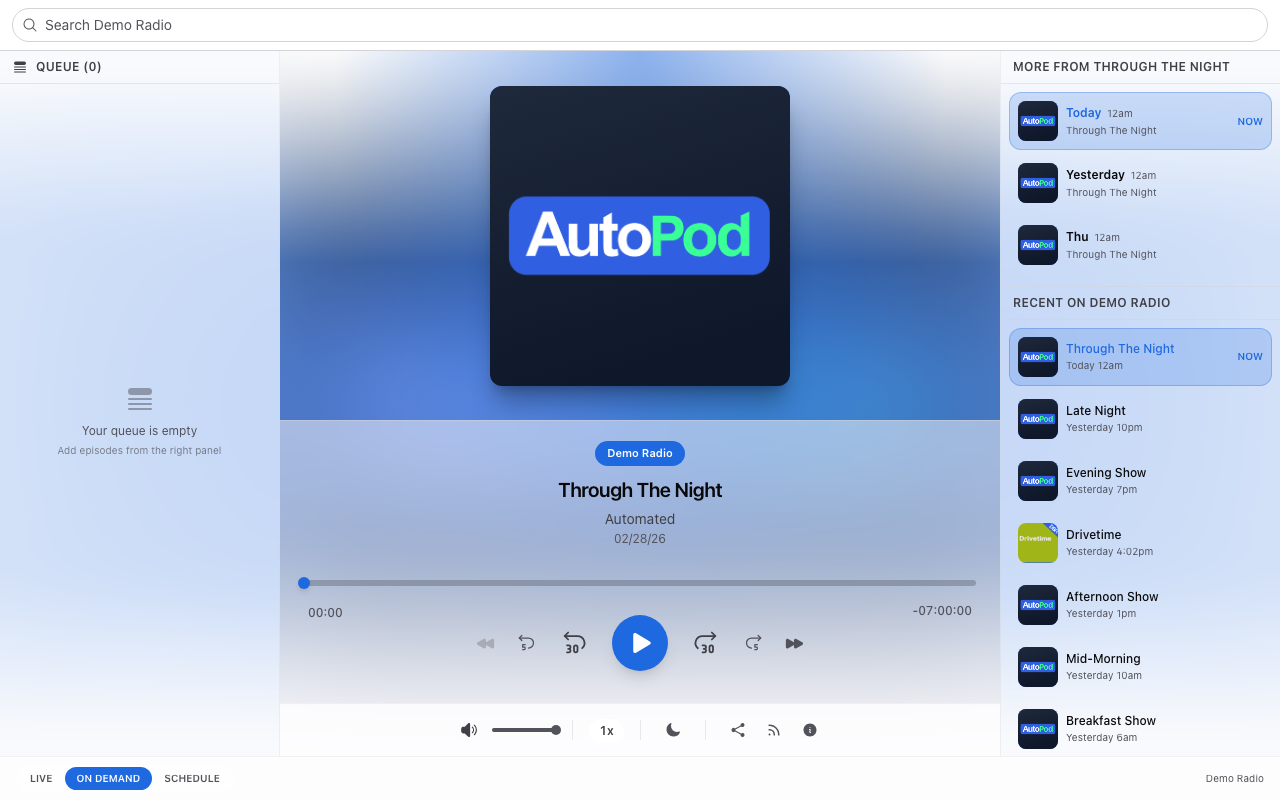
The AutoPod Player is a modern, responsive audio player for your station. It gives your listeners a place to browse shows, listen to episodes, tune into your live stream, and install your station as an app on their phone.
What is the player?
Every AutoPod station gets its own player — a web application hosted at player.autopod.xyz (or on your own custom domain). Think of it as your station's listen-again app. It works in any browser, on any device, and can be installed as a standalone app.
Key features
Episode browsing
Your listeners can browse all published episodes, filtered by show. Episodes are listed newest-first with artwork, title, and date. Click to play — the episode streams directly in the browser.
Show discovery
The Shows page displays all your published shows in a grid with artwork. Click a show to see its recent episodes. This helps listeners discover programmes they might not have heard before.
Live streaming
When enabled, the player can stream your live broadcast with a single tap. The live mode shows what's on now and what's coming up next, keeping listeners engaged with your schedule.
See Live Streaming for setup details.
Schedule display
A multi-day broadcast schedule shows your programming at a glance. The current time is highlighted, past shows are faded, and upcoming shows are clearly visible. Listeners can see what's on now and plan their listening.
Search
Listeners can search across all your episodes by title, description, or show name. Results appear instantly and can be played or added to the queue.
Queue and playlist
Listeners can build a queue of episodes to play in sequence. The queue supports drag-and-drop reordering and persists between sessions. When one episode finishes, the next plays automatically.
The skip behaviour setting controls what plays next:
- Same show first — Plays the next episode from the current show, then moves to other content
- All episodes (chronological) — Plays episodes from across all shows in order
Playback controls
- Play, pause, and seek with a visual scrubber
- Skip forward/backward (30-second intervals)
- Playback speed (0.75x, 1x, 1.5x, 2x)
- Volume control with mute toggle
- Sleep timer (15, 30, 45, 60 minutes, or custom)
- Media key support (keyboard and headphone controls)
Sharing
Listeners can share episodes via direct link, Twitter/X, Facebook, WhatsApp, or email. Shared links include a timestamp so the recipient starts at the right moment.
Installable as an app
The player is a Progressive Web App (PWA). Listeners can install it on their phone's home screen — it looks and behaves like a native app, complete with your station's icon and colours.
See Installing as an App for details.
Configuring your player
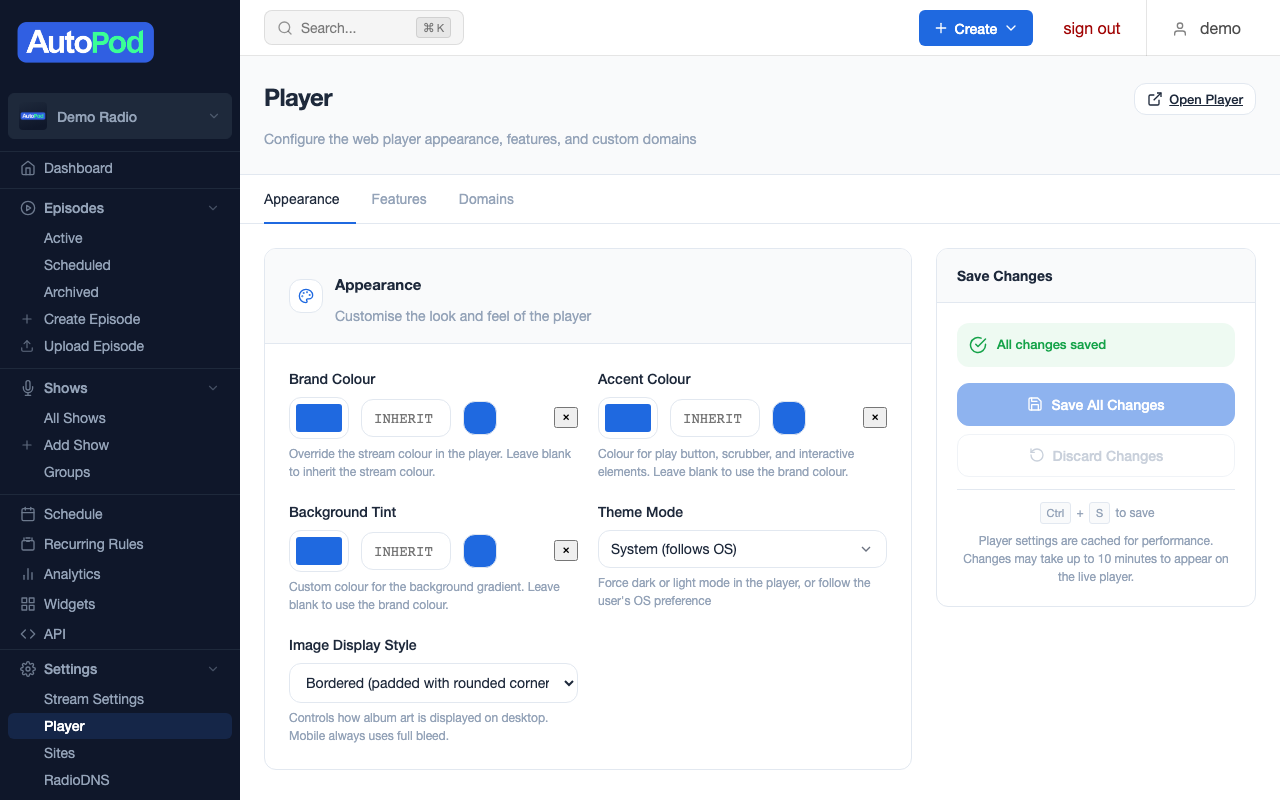
All player settings are managed from the dashboard. Go to Player Settings in the sidebar.
Appearance
| Setting | What it controls |
|---|---|
| Brand Colour | Primary colour for your station badge and branding elements |
| Accent Colour | Colour for interactive elements — play button, scrubber, links |
| Background Tint | Gradient colour behind the artwork |
| Theme Mode | System (matches listener's device), Dark, or Light |
| Image Style | Bordered (padded with rounded corners) or Full Bleed (edge-to-edge) |
See Theming & Colours for a detailed guide.
Feature toggles
You can enable or disable individual player features to match your station's needs:
| Feature | Default | What it does |
|---|---|---|
| Live Streaming | Off | Enable the live stream with your stream URL |
| Show Schedule | Off | Display the broadcast schedule |
| Show Search | On | Allow listeners to search episodes |
| Show Share Button | On | Show sharing options on episodes |
| Show Sidebar | On | Display the sidebar with queue and history |
| Show Shows Page | Off | Show the shows browsing page |
| Show Now/Next | On | Display current and upcoming shows in live mode |
| Show Current Track | Off | Display Icecast track metadata in live mode |
Custom domains
Point your own domain at the player for a professional, branded experience. See Custom Domains.
Player URL
Your player is accessible at:
https://player.autopod.xyz/?stream={your-stream-id}
With a custom domain, it becomes simply:
https://listen.yourstationname.com
Keyboard shortcuts
| Shortcut | Action |
|---|---|
| Space / K | Play / Pause |
| J / Left Arrow | Rewind 30 seconds |
| L / Right Arrow | Forward 30 seconds |
| . (period) | Increase playback speed |
| , (comma) | Decrease playback speed |
| / | Focus search box |
| Escape | Close modal or dialog |
Media keys on your keyboard or headphones also control playback (play/pause, next, previous).
How it fits together
Your player automatically reflects any changes you make in the dashboard — new episodes, updated show artwork, schedule changes, and setting adjustments all appear in the player without any manual publishing step.