API Overview
The AutoPod API lets you programmatically access your station's episodes, shows, schedule, and live status. Use it to build custom integrations, display content on your website, or connect AutoPod to other tools.
We launched the API recently and we know there's room to grow. If there's an endpoint you'd like to see, a feature that would help your workflow, or something that could work better — we'd love to hear from you. We plan to evolve the API based on real customer needs, and we'll do it carefully so existing integrations keep working.
Base URL
https://api.autopod.xyz/v1
All endpoints are prefixed with /v1. The API returns JSON responses.
What you can do
The API provides read access to your station's public content, plus optional write access for creating and managing episodes and shows.
Read endpoints
| Endpoint | What it returns |
|---|---|
GET /v1/station | Station name, description, branding |
GET /v1/episodes | Episode listings with pagination |
GET /v1/episodes/{id} | Single episode details |
GET /v1/shows | All shows for your station |
GET /v1/shows/{id} | Single show details |
GET /v1/schedule | 7-day schedule |
GET /v1/now-playing | What's on air right now |
GET /v1/search | Search episodes by keyword |
Write endpoints
These require a key with the appropriate write scope (e.g. episodes:write, shows:write).
| Endpoint | What it does |
|---|---|
POST /v1/episodes | Create episode from external audio URL |
POST /v1/episodes/upload | Upload an MP3 file as a new episode |
PUT /v1/episodes/{id} | Update episode title, description, artwork |
DELETE /v1/episodes/{id} | Archive an episode |
POST /v1/shows | Create a new show |
PUT /v1/shows/{id} | Update show details |
DELETE /v1/shows/{id} | Delete a show (if it has no episodes) |
PUT /v1/schedule | Update schedule entries |
DELETE /v1/schedule | Clear schedule entries |
Quick start
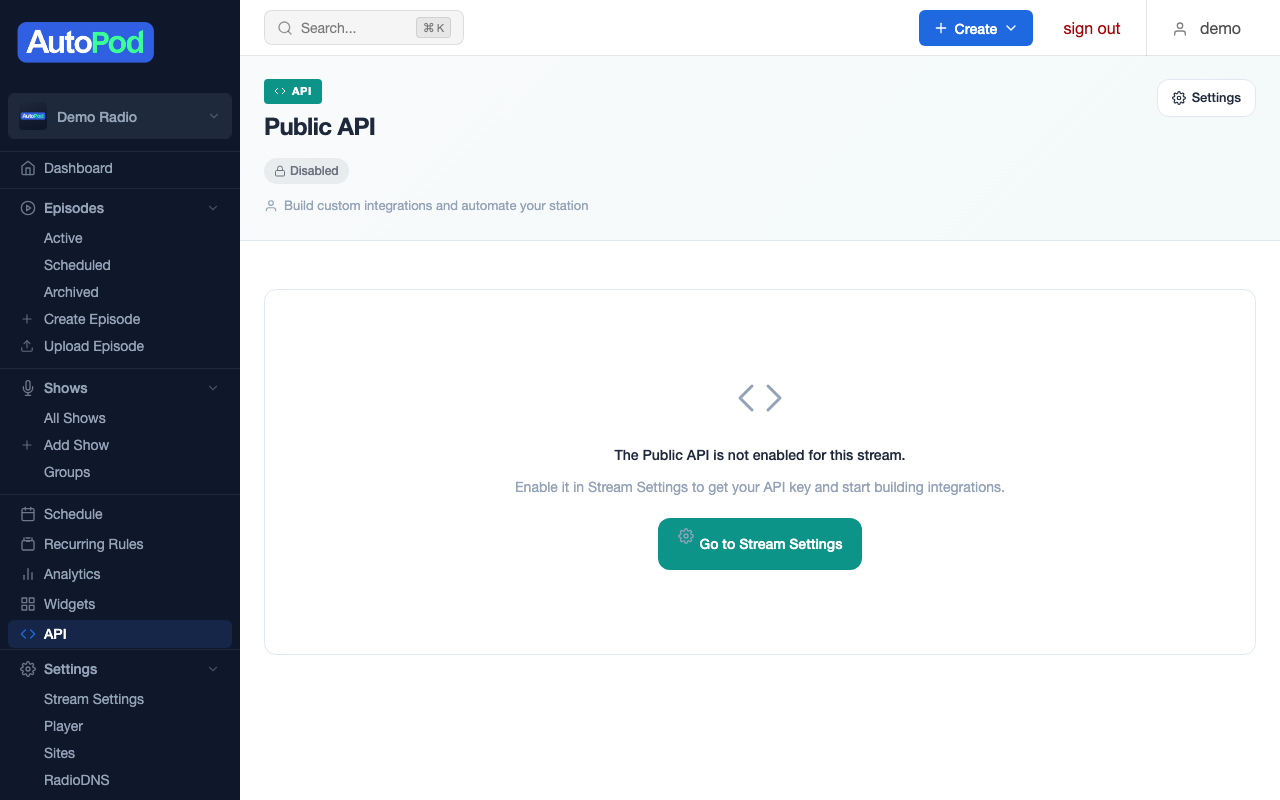
1. Enable the API
Go to Stream Settings in the dashboard and toggle Enable Public API on.
2. Create an API key
Go to the API Guide page in the dashboard and click Create Key. Give it a label, select the scopes you need, and copy the key — it's only shown once.
3. Make your first request
curl -H "X-API-Key: apk_your-key-here" \
  https://api.autopod.xyz/v1/station
Response:
{
  "id": 42,
  "name": "Radio One",
  "description": "The best music from the 80s and 90s",
  "image": "https://cdn.example.com/stations/radio-one.png",
  "color": "#e91e63",
  "url": "https://radioone.example.com"
}
4. Add write scopes (optional)
If you need to create episodes or manage shows, create a key with the appropriate write scopes (e.g. episodes:write, shows:write). See Scopes for the full list.
How it works
Key concepts
Scoped API keys
Each stream can have up to 10 API keys, each with its own set of scopes that control which endpoints it can access. A key determines which stream's data you can access — there's no cross-stream access. See Authentication for details on scopes.
Least privilege by default
When creating a key, only select the scopes your integration actually needs. A key for displaying episodes on your website only needs read scopes — it shouldn't have write access.
Server-side caching
Responses are cached briefly (15–60 seconds depending on the endpoint) to keep things fast. After a write operation, it may take up to the cache TTL for changes to appear in subsequent GET requests.
JSON everywhere
All requests and responses use JSON. The only exception is file uploads, which use multipart/form-data.
Unix timestamps
All dates and times are returned as Unix timestamps (seconds since epoch). This makes them easy to work with in any programming language.
Interactive documentation
The API includes auto-generated Swagger documentation at:
https://api.autopod.xyz/docs
You can browse all endpoints, see request/response schemas, and try requests directly from the browser.
Next steps
- Authentication — How to set up and use your API key
- Error Handling — Understanding error responses
- Rate Limits — Request limits and best practices