Your First Login
What to expect when you sign in to the AutoPod dashboard for the first time.
Signing in
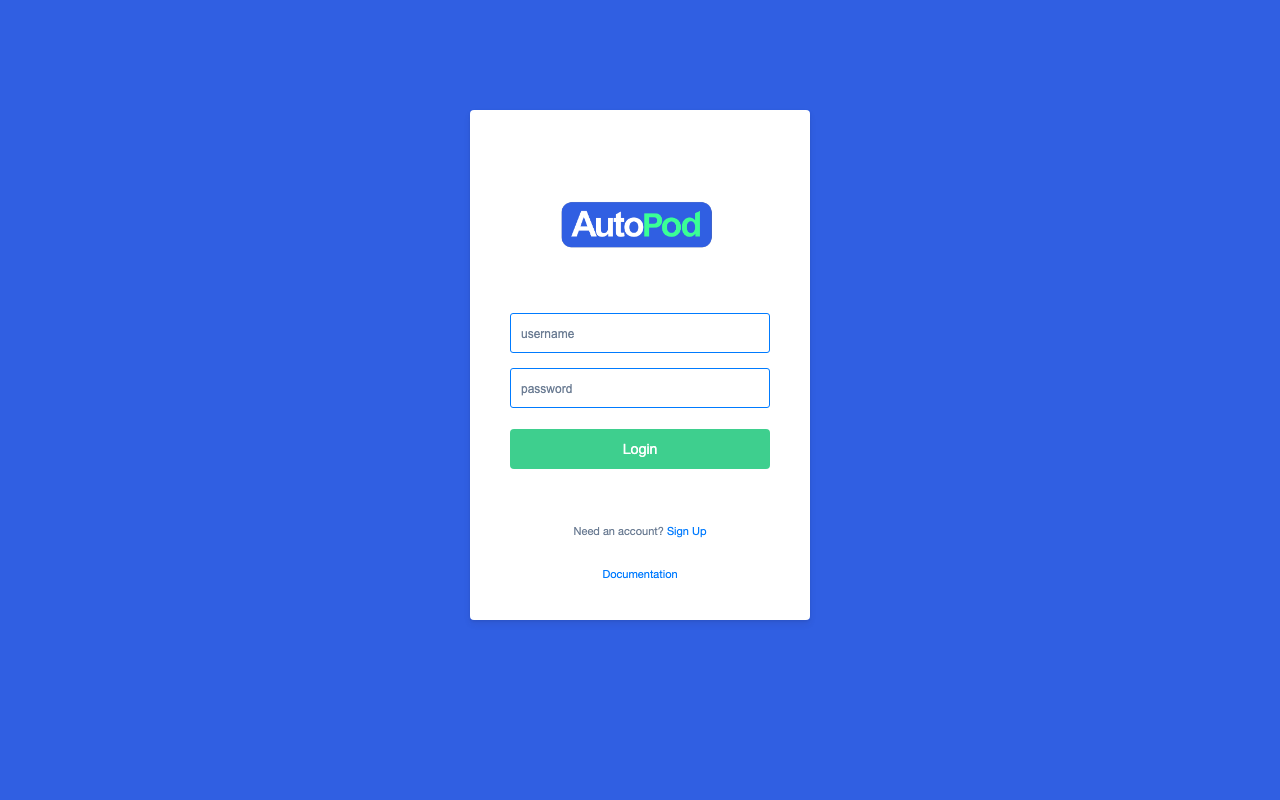
- Go to your dashboard URL (this was provided by your AutoPod partner when you ordered)
- Enter your username and password
- Click Sign In
info
If you've forgotten your credentials, contact your AutoPod provider — they can reset your password.
What you'll see
After signing in, you'll land on the Dashboard homepage. This gives you an overview of your station:
- Stream status — whether your stream is being recorded
- Recent episodes — the latest content AutoPod has generated
- Quick links — shortcuts to common tasks
- Stream selector — if your account has multiple streams, switch between them here
First-time checklist
Before AutoPod can start generating episodes, make sure:
- Your stream is connected — check the stream status indicator on the dashboard homepage. If it shows as recording, you're good.
- You have at least one show — go to Shows and create your first show with a title, presenter, description, and artwork.
- Your schedule is set — go to Schedule and assign shows to time slots. AutoPod uses this to know which show is airing when.
Once all three are in place, AutoPod will start generating episodes automatically after each scheduled show airs.
Access levels
There are two types of dashboard user:
| Role | What they can do |
|---|---|
| Admin | Full access — manage shows, schedule, episodes, users, player settings, analytics, and all configuration |
| Delegate | Limited access — view and manage episodes for specific shows they've been assigned to. Ideal for presenters. |
See Managing Users for more on setting up delegate accounts for your team.