Dashboard Tour
A quick walk through the main areas of the AutoPod dashboard.
The dashboard is where you manage everything about your station's on-demand presence. Here's what you'll find in the main navigation.
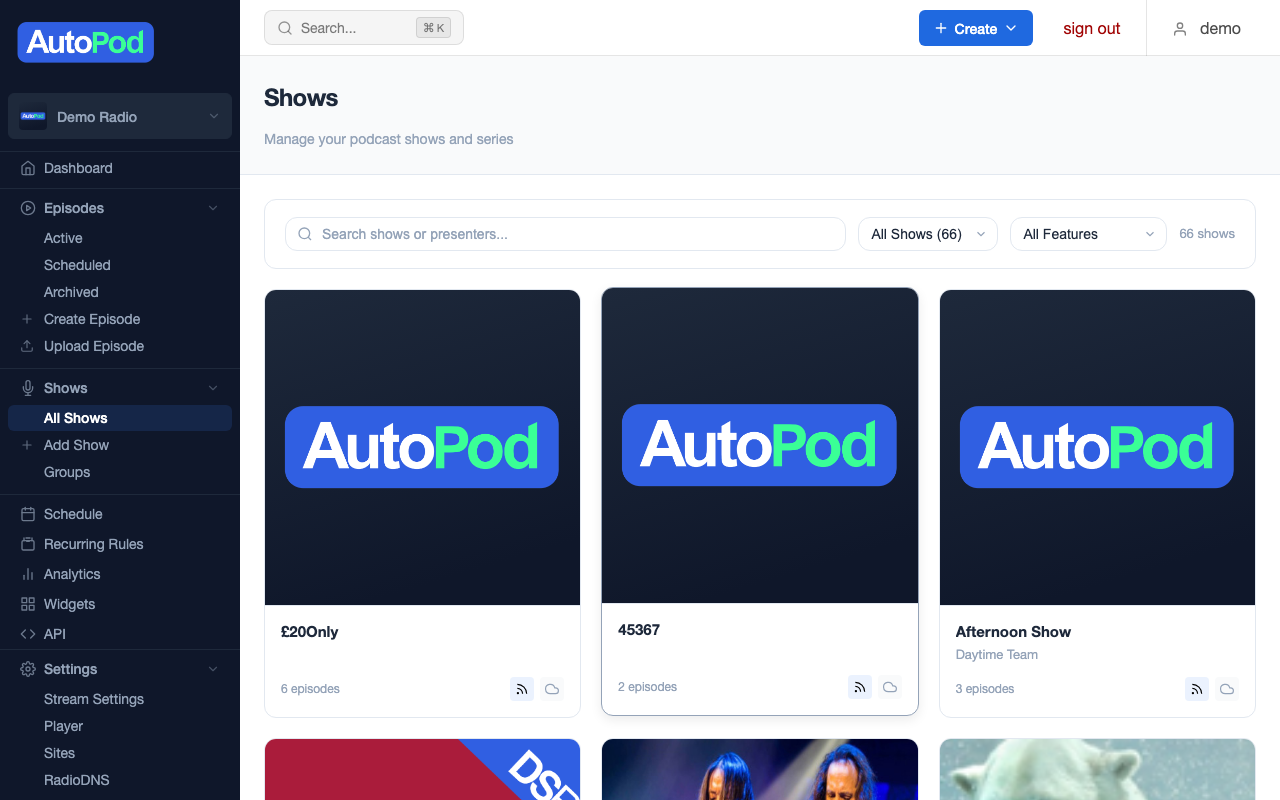
Shows
Create, edit, and manage your shows and show groups.
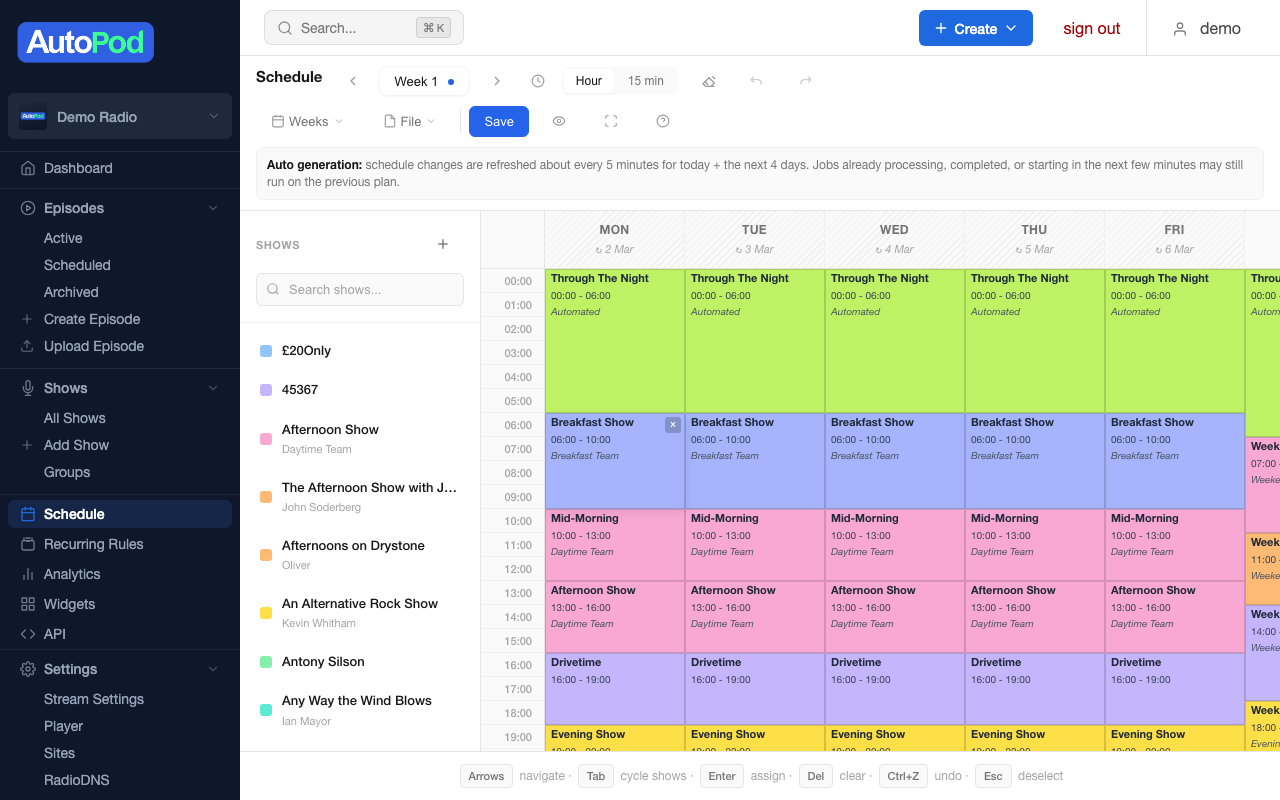
Schedule
The drag-and-drop schedule builder — assign shows to time slots across the week.
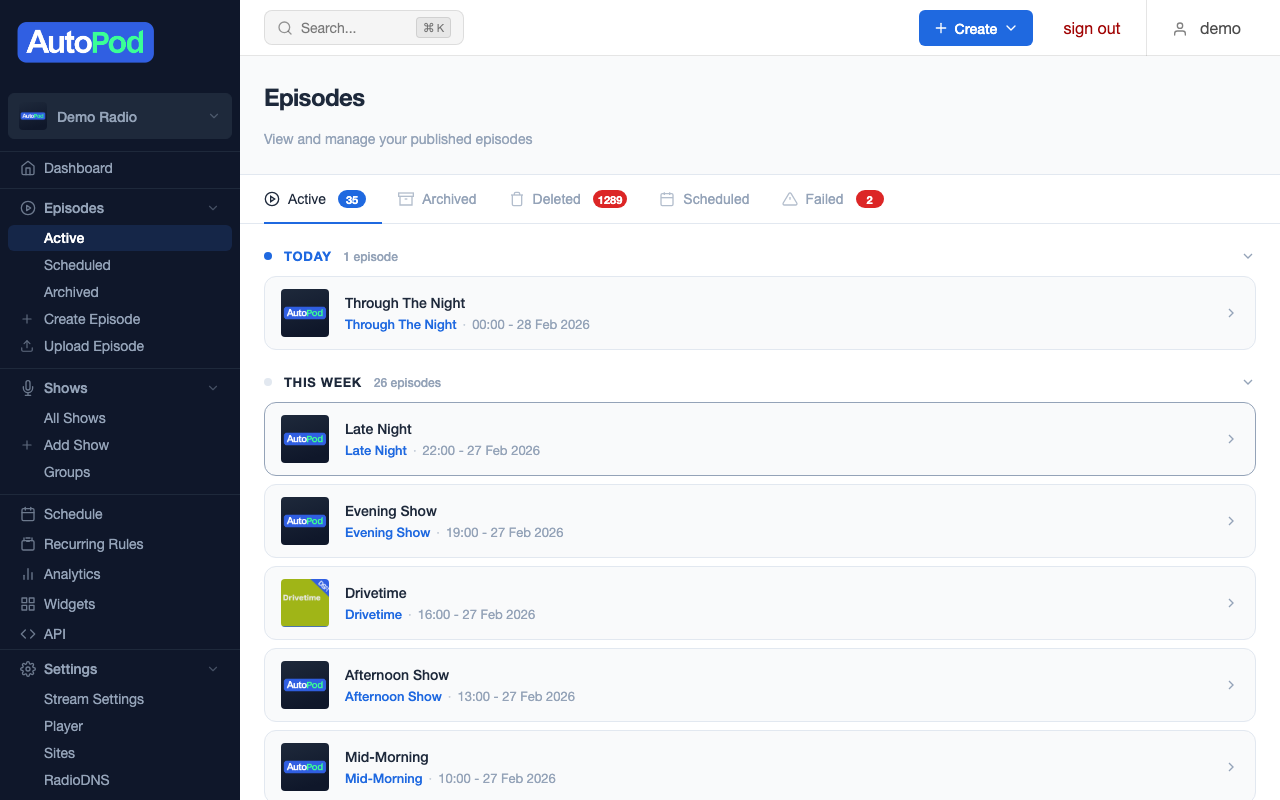
Episodes
Browse, edit, upload, and manage all your episodes.
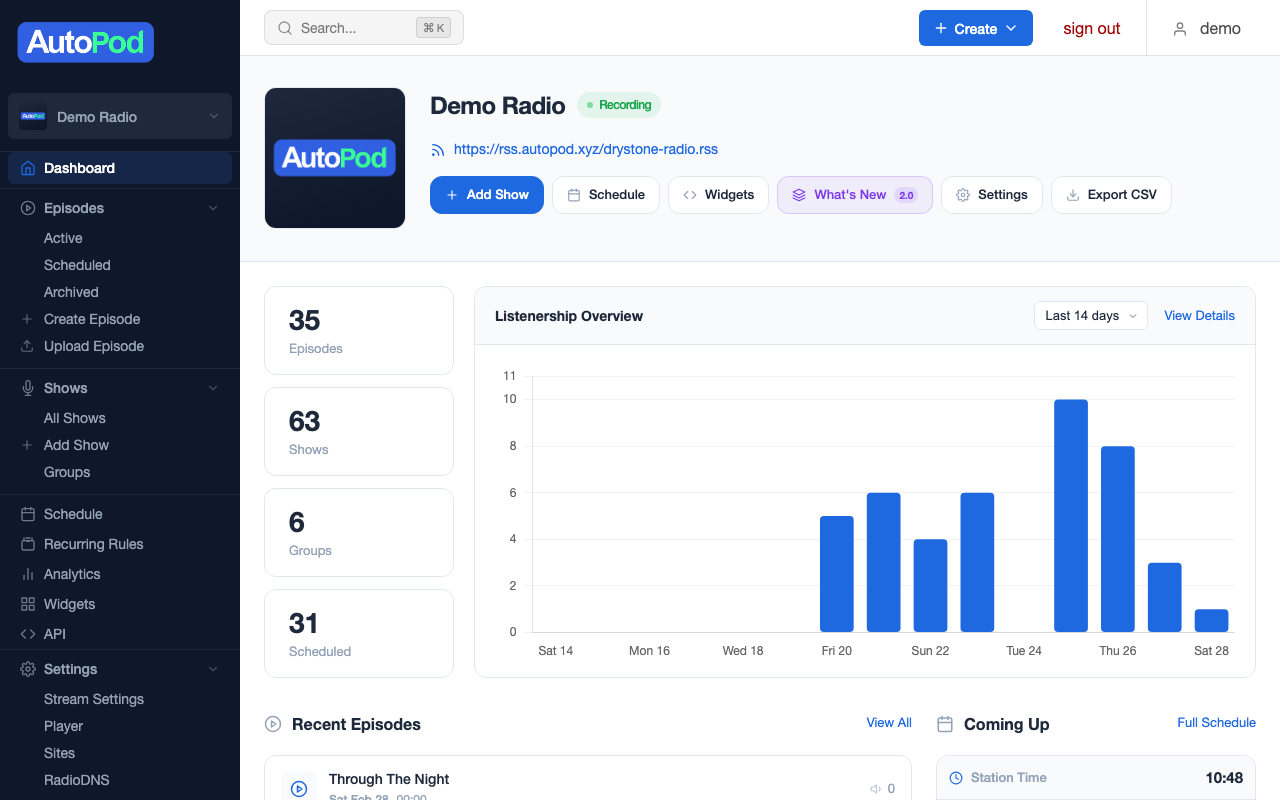
Statistics
Audience insights, listener trends, top content, and data export.
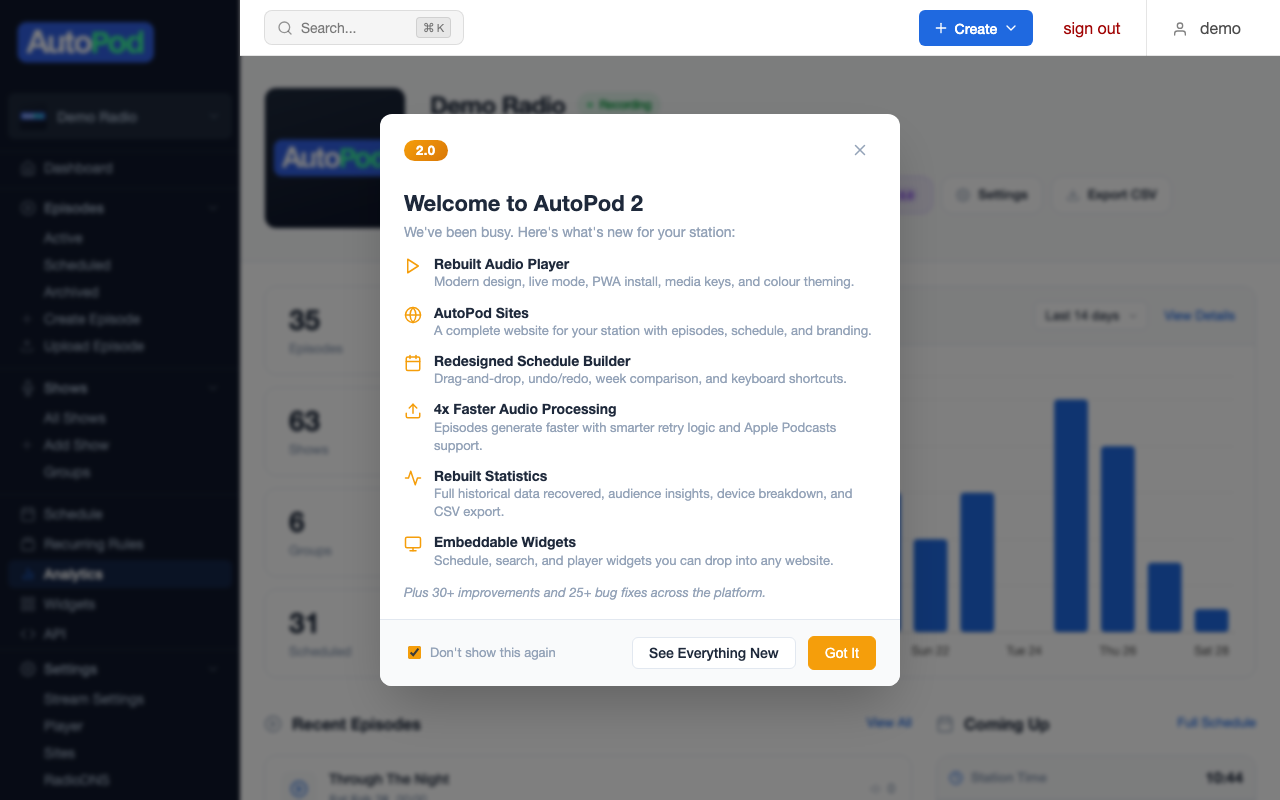
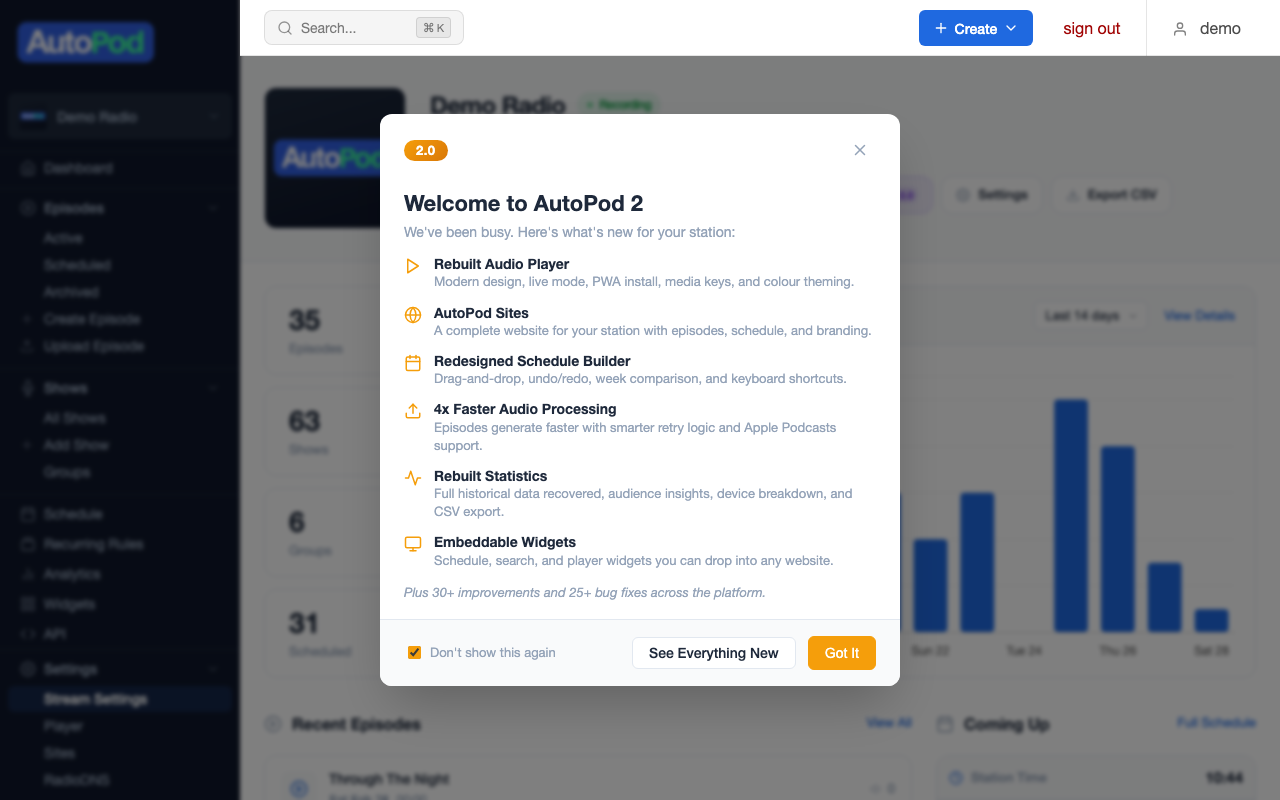
Settings
Stream settings, player customisation, sites, widgets, and API access.
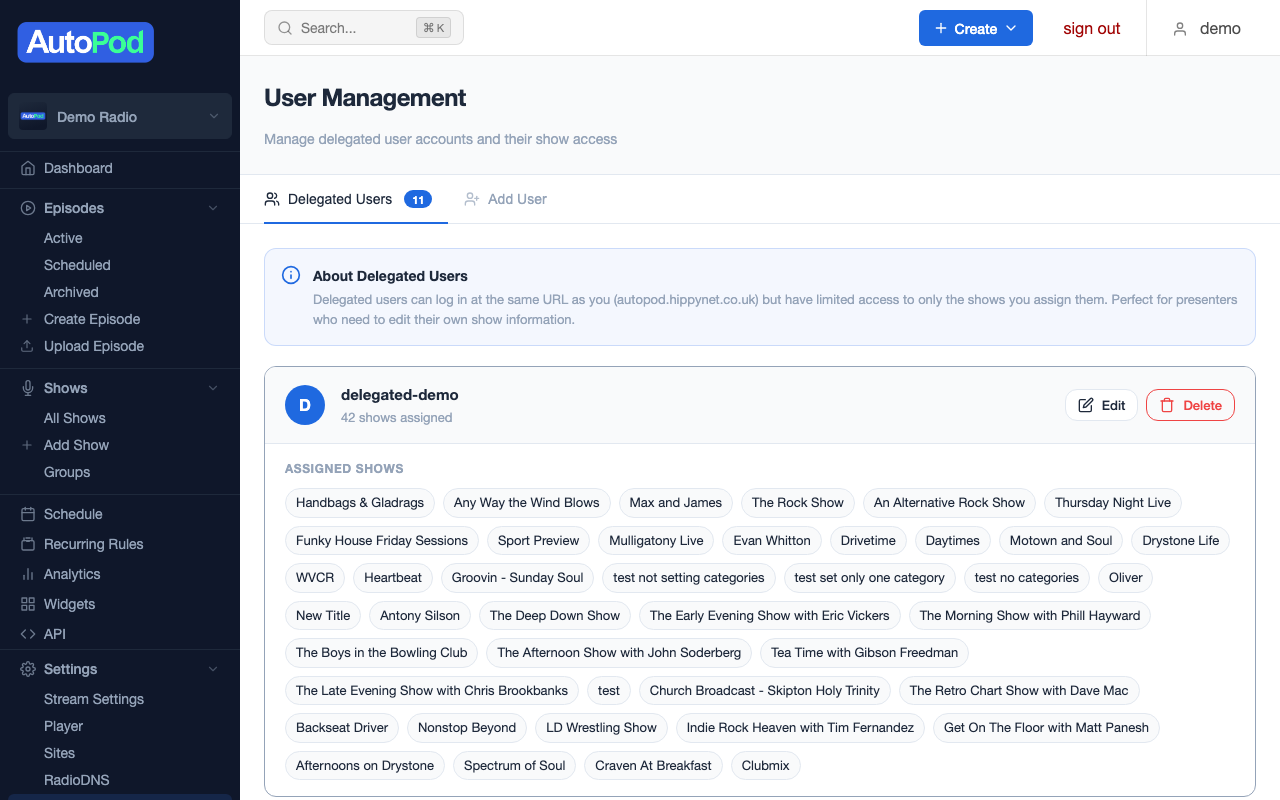
Users
Manage admin and delegate user accounts.
Stream selector
If your account manages multiple streams (e.g., a main station and a specialist stream), use the stream selector at the top of the dashboard to switch between them. Each stream has its own shows, schedule, episodes, and settings.
Key concepts
As you use the dashboard, you'll encounter these terms:
- Stream — your radio station's audio source. Everything in AutoPod is organised under a stream.
- Show — a named programme in your schedule (e.g., "The Breakfast Show"). Shows have a title, presenter, artwork, and settings.
- Episode — a single published piece of audio content, either generated automatically from the schedule or uploaded manually.
- Series — the link between a show and its schedule entries. Each show has a series that connects it to the schedule.
- Group — a collection of shows, useful for creating combined RSS feeds or widget displays.
For a full list of terms, see the Glossary.
Recommended first workflow
If you're setting up a station from scratch, work through the dashboard in this order:
- Home — check your stream is connected and recording
- Shows — create a show for each programme in your schedule
- Schedule — assign shows to their time slots
- Settings — customise your player colours and enable features
- Wait — after your next scheduled show airs, check Episodes to see it appear
The Quick Start Guide walks through this workflow step by step.