Managing Episodes
Episodes are the individual pieces of published audio that your listeners hear. Most episodes are created automatically from your schedule, but you can also upload and create them manually.
How episodes are created
Episodes in AutoPod come from two sources:
- Automatic episodes — Created from your broadcast schedule. AutoPod records your stream, matches the recording to your schedule, and generates an episode for each show. This is the main way episodes are created — it happens without any action from you.
- Manual upload — Upload a pre-recorded MP3 file directly. Useful for interviews, special content, or shows recorded outside the studio.
- Create from recording — Extract a segment from the continuous stream recording and turn it into an episode. Useful for creating episodes from unscheduled broadcasts or re-cutting existing content.
Viewing your episodes
Go to Episodes in the sidebar. The page is organised into tabs:
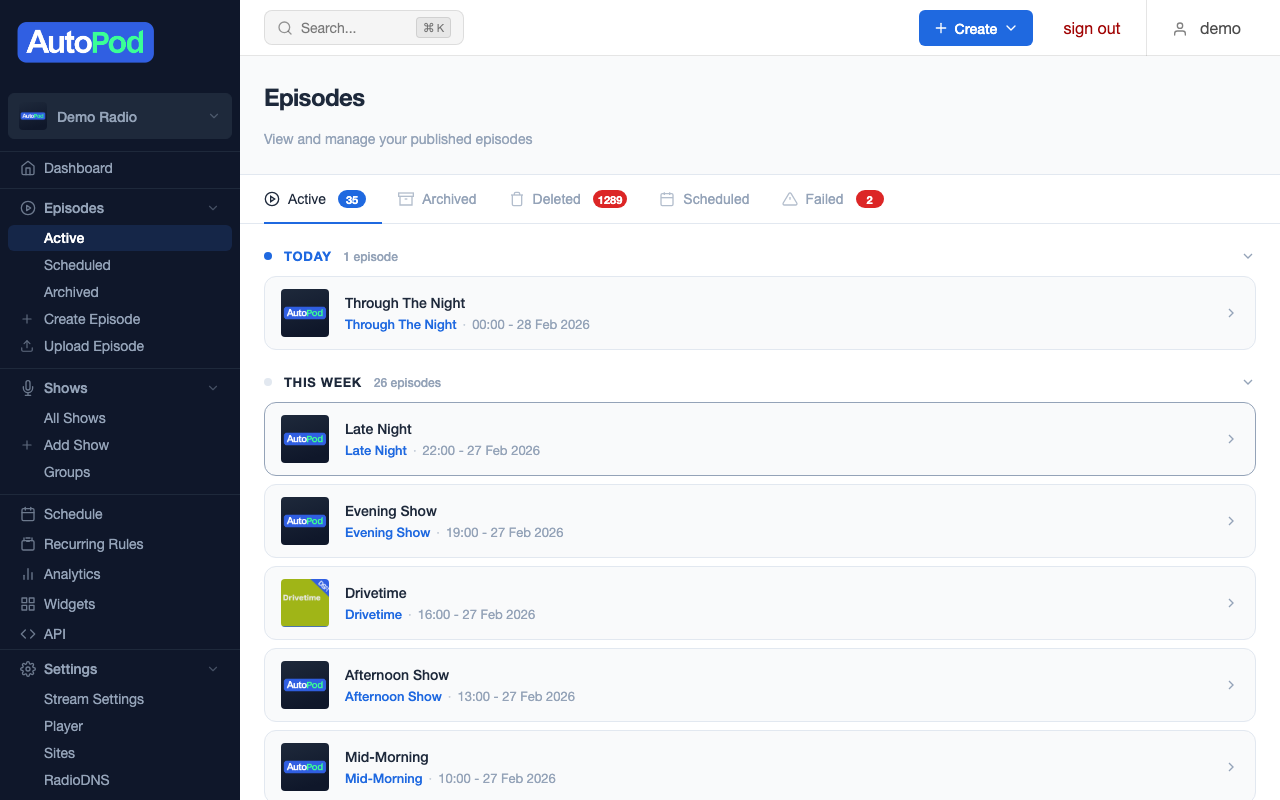
| Tab | What it shows |
|---|---|
| Active | Published episodes available to listeners (newest first) |
| Archived | Episodes you've archived — hidden from listeners but still in the system |
| Deleted | Permanently deleted episodes (metadata kept for audit) |
| Scheduled | Upcoming recordings that haven't been processed yet |
| Failed | Episodes that failed to generate (with retry option) |
| Bulk Edit | Select and modify multiple episodes at once |

Each episode in the list shows its artwork, title, publication date, show name, and status badges.
Episode statuses
Episodes move through different states during their lifecycle:
| Status | What it means |
|---|---|
| Active | Published and available to listeners in the player, website, and RSS feeds |
| Scheduled | Has a future publication date — will become active automatically when the time arrives |
| Private | Belongs to an unpublished show — visible in the dashboard but not to the public |
| Archived | Hidden from listeners but still in the system — can be unarchived at any time |
| Pending | A recording job has been created and is waiting to be processed |
| Processing | Audio is currently being generated (stitching segments together) |
| Failed | The audio generator encountered an error — see Handling failed episodes |
| Deleted | Permanently removed — the audio file has been deleted from storage |
Episode detail page
Click any episode to see its detail page:

| Tab | What it shows |
|---|---|
| Overview | Description, listen count, audio player preview |
| Share | Embed codes, social sharing links (published episodes only) |
| Settings | Edit title, description, show, date, artwork, audio file |
| Editor | Waveform audio editor for trimming and cutting (when audio file exists) |
Available actions
From the episode detail page, you can:
- Download — Download the MP3 file to your computer
- Play — Open the episode in the player
- RSS — Link to the show's RSS feed
- Archive / Unarchive — Toggle the archived state
- Upload to Mixcloud — Queue the episode for Mixcloud upload (if Mixcloud is connected)
- Delete — Permanently remove the episode and its audio file
Editing an episode
-
Go to the episode detail page → Settings tab
-
You can change:
- Title (max 499 characters)
- Description
- Show — move the episode to a different show
- Publication date and time
- Artwork — upload a new image (PNG, ideally 3000 × 3000px)
- Audio file — upload a replacement MP3
-
Click Update Episode
Changes take effect immediately in the player and website. RSS feeds update within a few minutes.
Audio editing
For episodes with audio files, the Editor tab provides tools to modify the audio without re-uploading:
| Tool | What it does |
|---|---|
| Trim / Cut | Remove a section from the start, end, or middle of the episode |
| Waveform Editor | Visual editor — see the waveform and select regions to trim or cut |
| Replace Audio | Upload a completely new audio file to replace the existing one |
This is useful for removing dead air, cutting out music segments for podcast distribution, or trimming episodes that were generated slightly too long.
Handling failed episodes
Sometimes an episode fails to generate. This can happen if:
- The stream was offline during part of the scheduled time
- There weren't enough recording segments available
- A temporary processing error occurred
To retry a failed episode:
- Go to Episodes → Failed tab
- Find the failed episode
- Click Retry
The episode re-enters the processing queue with a fresh attempt. You can retry as many times as needed.
Most failures are temporary. If an episode fails once, retrying usually succeeds. If it fails repeatedly, check that the stream was actually broadcasting during the scheduled time.
Archiving and deleting
Archiving (reversible)
Archiving hides an episode from your listeners but keeps it in the system.
- Archive — Episode disappears from the player, website, and RSS feeds
- Unarchive — Episode reappears everywhere
Use archiving for seasonal content, episodes you want to remove temporarily, or old episodes you want to keep but not display.
You can also set up auto-archiving on a per-show basis — see Managing Shows.
Deleting (permanent)
Deleting an episode permanently removes the audio file from storage. This cannot be undone.
- Click Delete Episode from the episode's action menu
- Confirm the deletion
The episode's metadata is preserved in the Deleted tab for your records, but the audio file is gone.
If you're unsure, archive instead of deleting. You can always delete later.
Bulk actions
From the Bulk Edit tab on the episodes page, you can select multiple episodes and:
- Archive or Unarchive in bulk
- Delete multiple episodes at once
This is useful for cleaning up a large backlog or archiving an entire season.
Mixcloud integration
If your stream has Mixcloud connected, you can upload individual episodes directly:
- Open the episode detail page
- Click Upload to Mixcloud from the action menu
- The episode is queued for upload
Once uploaded, a View on Mixcloud link appears. Episodes are uploaded with their title, description, and artwork.
Mixcloud uploads happen in the background and may take a few minutes. You can continue working while the upload processes.
Episode distribution
Every active episode is automatically available through multiple channels:
You don't need to publish episodes to each channel separately — once an episode is active, it appears everywhere your station is configured to distribute to.